HTML-Screenshot

HTML und CSS in Bilder oder PDF umwandeln

HTML einfügen, CSS ergänzen oder Dateien hochladen und daraus Screenshots oder PDFs erzeugen.

  • Kostenlos nutzbar
  • Keine Registrierung nötig
  • PNG · JPG · WebP · PDF

Eingebettete HTML-Stile bleiben erhalten. Lokale Bilder und Schriften werden nicht automatisch hochgeladen; nutzen Sie öffentliche URLs oder eingebettete Ressourcen.

Handy-Voreinstellungen zeigen ein Browserfenster, kein echtes Gerät. Lange Seiten und nachgeladene Inhalte können unvollständig sein.

Diese Seite ist für Nutzer gedacht, die HTML oder CSS bereits haben und daraus einen visuellen Export brauchen. Sie unterstützt Code-Eingabe und Datei-Upload und eignet sich für Templates, E-Mail-Layouts, Mockups und wiederverwendbare HTML-Bausteine.

See a real example and conversion limits
Beliebte Aufgaben

Real input. Actual output.

Try a real HTML to PNG example

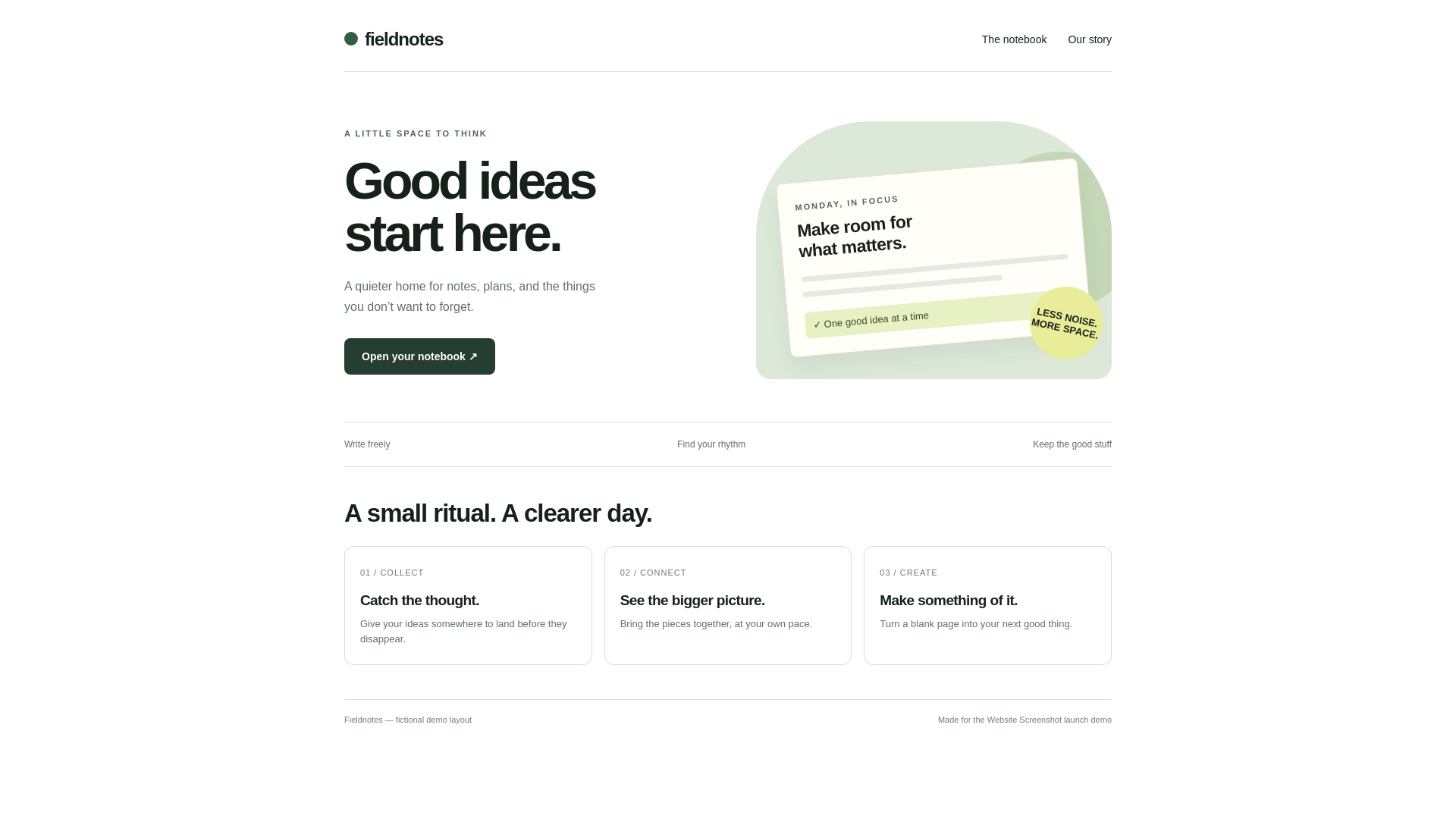
Render Fieldnotes, an original fictional landing page, from one complete HTML document. The example uses embedded CSS and system fonts, with no external images or font downloads.

Input: complete HTML document

/examples/fieldnotes.htmlDownload the example HTML

Settings to reproduce

  • Input: Manual input → HTML
  • CSS field: empty (styles are embedded in the HTML)
  • Format: PNG
  • Device: Desktop (1920 × 1080)
  • Display zoom: 100%; output size: original

Try it yourself

  1. Download the HTML and open it in a text editor, then copy the entire document into the HTML field above.
  2. Leave the separate CSS field empty. Check the green artwork and rounded shapes in the preview.
  3. Choose PNG and the desktop preset, convert, then download the original image.
Try these settings in the tool
Actual PNG export of the Fieldnotes HTML example, with green artwork and three content cards
Actual service export, 24 October 2026: 1920 × 1080 PNG. Fieldnotes is demonstration content, not a customer endorsement.
Download the actual PNG

Limitations to know before converting

Complete documents and extra CSS

Embedded style blocks are retained. CSS entered in the separate field is appended after the document styles, so normal CSS specificity and source order apply. A matching rule can override an earlier one.

Images, fonts, and local files

Relative file paths and files on your computer are not automatically uploaded with pasted HTML. Use publicly accessible absolute URLs or inline assets. Blocked resources and fonts that load late can change the result.

Preview versus export

The preview is scaled to fit the editor. Compare the downloaded original at the intended dimensions. JavaScript, network requests, and rendering timing can make complex pages differ from the local preview.

Browser and email compatibility

This produces a browser rendering, not a test across physical phones or email clients. A screenshot is a static image; links, forms, animations, and video do not stay interactive.

Häufige Anwendungsfälle

Typische HTML-Export-Einsätze

HTML als JPG für leichte visuelle Exporte konvertieren

JPG ist hilfreich, wenn kleine Vorschaubilder oder schnell teilbare Exporte aus HTML benötigt werden.

  • • Gut für leichte Vorschauen
  • • Praktisch für Sharing und Reports
  • • Ideal für schnelle Freigaben

HTML als PNG für schärfere Layout- und UI-Ansichten exportieren

PNG eignet sich besser für UI-Details, Text und präzise Layout-Kontrolle.

  • • Schärfer für UI und Text
  • • Gut für Template-Review
  • • Praktisch für visuelle QA

HTML als WebP exportieren

WebP ist eine moderne Option, wenn gute Qualität bei geringerer Dateigröße gewünscht ist.

  • • Modernes Format
  • • Gute Balance aus Qualität und Größe
  • • Geeignet für Web-Vorschauen

HTML als PDF für dokumentartige Workflows ausgeben

Wenn Reports, Rechnungen oder druckbare Templates gebraucht werden, passt PDF meist besser als ein Bild.

  • • Gut für Rechnungen und Reports
  • • Hilfreich für Druck und Archiv
  • • Dokumentenorientierter Workflow

Code-Eingabe und HTML-Datei-Upload in einem Workflow

Kurze HTML-Snippets und fertige HTML-Dateien lassen sich auf derselben Seite rendern und exportieren.

  • • Code einfügen
  • • Datei hochladen
  • • Für Templates und Mockups geeignet

FAQ

HTML-Screenshot FAQ

Ist Website Screenshot kostenlos und brauche ich ein Konto?+

Ja. Die Online-Tools für Screenshots und HTML-Konvertierung sind kostenlos und ohne Registrierung oder Installation nutzbar.

Bleibt eingebettetes CSS in einem vollständigen HTML-Dokument erhalten?+

Ja. Fügen Sie das gesamte Dokument einschließlich style-Blöcken ein. Lassen Sie das separate CSS-Feld leer, wenn keine zusätzlichen Regeln nötig sind. Zusätzliches CSS folgt nach den Dokumentstilen; Spezifität und Reihenfolge bestimmen das Ergebnis.

Welche Dateien kann ich hochladen?+

Unterstützt werden .html, .htm, .css und .mhtml bis 10 MB pro Datei. Aus MHTML werden HTML und lesbare eingebettete Ressourcen extrahiert; komplexe Archive werden möglicherweise nicht vollständig wiedergegeben. ZIP-Pakete und andere lokale Dateien werden nicht automatisch mit einer HTML-Datei hochgeladen.

Soll ich JPG, PNG, WebP oder PDF wählen?+

PNG ist verlustfrei und eignet sich für Text und UI-Details. JPG komprimiert verlustbehaftet und unterstützt keine Transparenz; die Größe hängt von Inhalt und Qualität ab. WebP ist eine weitere Bildoption. PDF kann Seitenumbrüche enthalten und eignet sich für Dokumente. Prüfen Sie den Export vor dem Teilen.

Findet die Konvertierung vollständig auf meinem Gerät statt?+

Nein. Übermitteltes HTML oder öffentliche URLs werden vom entfernten Konvertierungsdienst gerendert. Datei-Lesen und Vorschau erfolgen im Browser, der Export jedoch nicht rein lokal. Relative Bildpfade, private URLs und spät geladene Schriften können abweichen oder fehlen. Verwenden Sie erreichbare absolute URLs oder eingebettete Ressourcen.

Verwandte Tools

Verwandte Seiten