Full-Page-Screenshot

Ganze Seiten von oben bis unten erfassen

Nicht nur den sichtbaren Bereich, sondern die komplette Seite auf einmal speichern. Geeignet für lange Websites, iPhone-Ansichten und Android-Langseiten.

  • Kostenlos nutzbar
  • Keine Registrierung nötig
  • PNG · JPG · WebP · PDF

Nur öffentliche Seiten. Ihr Browser-Login wird nicht übernommen; CAPTCHA und Zugriffssperren können Aufnahmen verhindern.

Handy-Voreinstellungen zeigen ein Browserfenster, kein echtes Gerät. Lange Seiten und nachgeladene Inhalte können unvollständig sein.

Diese Seite ist der Hub für Full-Page-Screenshot-Intention. Sie deckt Website-Full-Page, iPhone-Full-Page und Android-Full-Page-Workflows ab.

See a real example and conversion limits

Beliebte Aufgaben

Real input. Actual output.

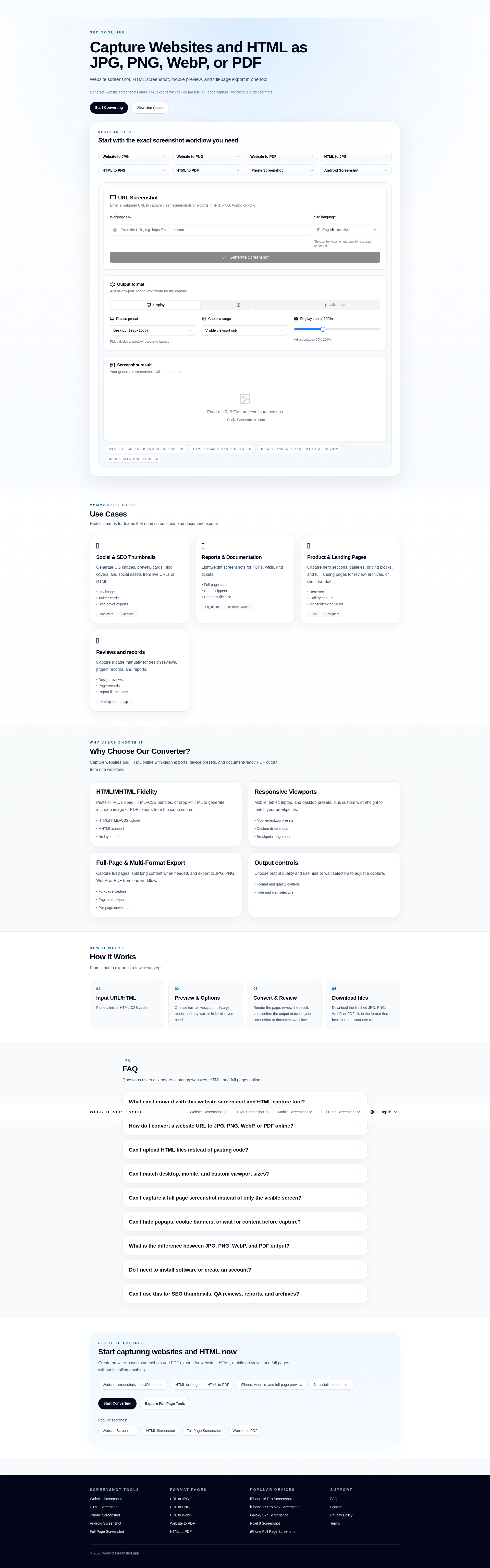
A real full-page website capture

This example captures the public Website Screenshot homepage from top to bottom. Compare its long exported image with a single desktop viewport.

Input: public website URL

https://www.websitescreenshot.app/

Settings to reproduce

  • Format: PNG
  • Device: Desktop (1920 × 1080)
  • Capture range: Full page
  • Output size: original; wait delay: 1000 ms

Try it yourself

  1. Paste the example URL into the website field above.
  2. Choose PNG, Desktop, and Full page in Display. Keep the original output size.
  3. Generate the screenshot and download the original. Open it at full resolution to inspect the content below the first screen.
Try these settings in the tool
Actual 1920 by 6141 full-page PNG export of the Website Screenshot homepage
Actual service export, 24 October 2026: 1920 × 6141 PNG. This is a dated snapshot; the live homepage may change. Scroll the preview to see the bottom.
Download the full-page PNG

Limitations to know before converting

Public pages and login sessions

The remote capture does not inherit your Chrome login, local cookies, VPN, or localhost. Login screens, CAPTCHA, access restrictions, and anti-bot protection may prevent capture. Only submit pages you are allowed to capture.

Lazy loading and infinite scrolling

Full-page mode attempts to scroll to load more content, but has time, height, and scroll-step limits. Infinite feeds and content loaded after clicks may be incomplete. Try a longer wait or a wait selector, then inspect the output.

Sticky elements and scrolling containers

Sticky headers, popups, animations, iframes, and independently scrolling panels can obscure or omit content. Hide selectors and wait controls can help, but cannot guarantee every site will render identically.

Mobile-sized is not a physical device

A phone preset changes the remote browser capture settings; it is not a screenshot from a physical iPhone or Android phone. Very long pages may fail or need smaller captures. Full page refers to the page, not every route on a website.

Häufige Anwendungsfälle

Typische Full-Page-Einsätze

Lange iPhone-Seiten vollständig erfassen

iPhone-Full-Page eignet sich für mobile Landingpages, Blogs und Checkout-Flows.

Lange Android-Seiten vollständig erfassen

Android-Full-Page eignet sich für Galaxy-, Pixel- und andere mobile Long-Page-Ansichten.

Full-Page-Ergebnisse auch als PDF sichern

Für Freigaben, Audits und Archivierung kann Full-Page auch als PDF exportiert werden.

FAQ

Full-Page-Screenshot FAQ

Ist Website Screenshot kostenlos und brauche ich ein Konto?+

Ja. Die Online-Tools für Screenshots und HTML-Konvertierung sind kostenlos und ohne Registrierung oder Installation nutzbar.

Erfasst der Ganzseitenmodus wirklich alle Inhalte?+

Er versucht Inhalte unterhalb des ersten Bildschirms innerhalb von Zeit-, Höhen- und Scrollgrenzen zu laden. Endlose Feeds, eigene Scrollbereiche und Inhalte nach Klicks können fehlen. Warteeinstellungen können helfen, garantieren aber keine vollständige Aufnahme.

Kann ich Seiten mit meiner Browser-Anmeldung aufnehmen?+

Der entfernte Browser übernimmt weder Chrome-Anmeldung noch Cookies, VPN oder localhost-Zugriff. Nutzen Sie öffentlich zugängliche URLs. Anmeldeseiten, CAPTCHA und Bot-Schutz können die Aufnahme verhindern.

Soll ich JPG, PNG, WebP oder PDF wählen?+

PNG ist verlustfrei und eignet sich für Text und UI-Details. JPG komprimiert verlustbehaftet und unterstützt keine Transparenz; die Größe hängt von Inhalt und Qualität ab. WebP ist eine weitere Bildoption. PDF kann Seitenumbrüche enthalten und eignet sich für Dokumente. Prüfen Sie den Export vor dem Teilen.