전체 페이지 스크린샷

보이는 화면만이 아니라 페이지 전체를 저장

긴 웹페이지나 모바일 레이아웃을 위에서 아래까지 한 번에 저장해야 할 때 전체 페이지 모드를 사용하세요.

  • 무료 사용
  • 가입 불필요
  • PNG · JPG · WebP · PDF

공개 페이지만 지원합니다. 브라우저 로그인 상태는 전달되지 않으며 CAPTCHA와 접근 제한으로 캡처가 실패할 수 있습니다.

휴대폰 프리셋은 브라우저 화면 크기 미리보기이며 실제 기기 테스트가 아닙니다. 긴 페이지와 지연 로딩 콘텐츠는 누락될 수 있습니다.

이 페이지는 full page screenshot, long screenshot, full webpage capture 같은 강한 검색 의도를 별도로 다루는 허브입니다. 웹사이트 전체 페이지, iPhone 전체 페이지, Android 전체 페이지 워크플로를 한곳에서 연결합니다.

See a real example and conversion limits

인기 작업

Real input. Actual output.

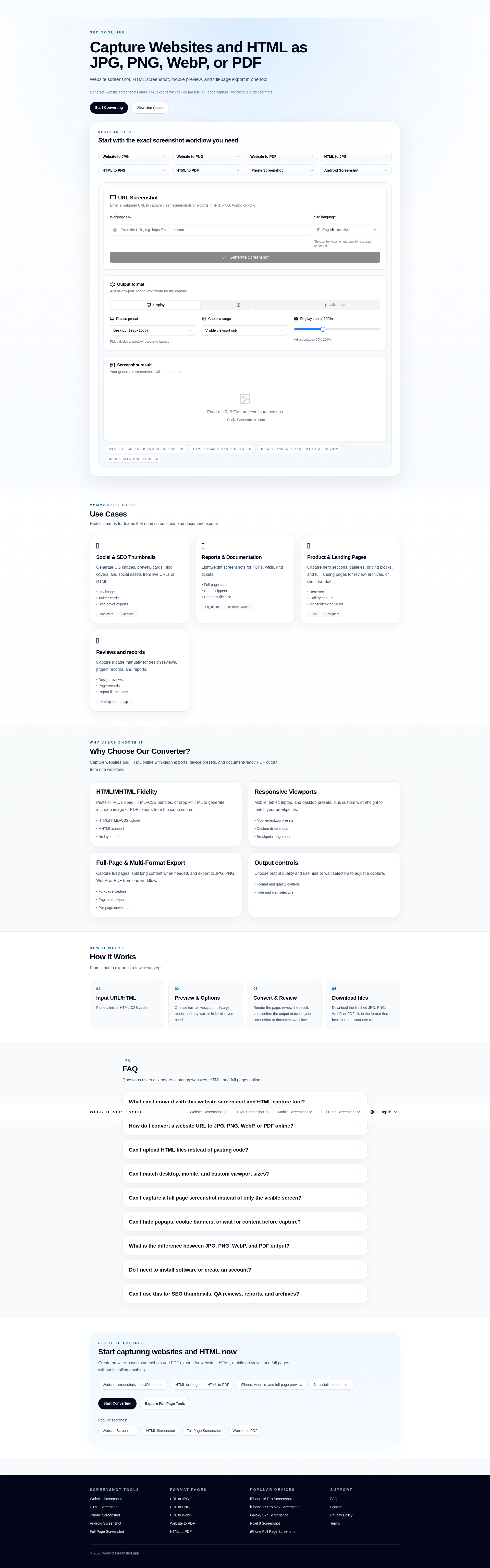
A real full-page website capture

This example captures the public Website Screenshot homepage from top to bottom. Compare its long exported image with a single desktop viewport.

Input: public website URL

https://www.websitescreenshot.app/

Settings to reproduce

  • Format: PNG
  • Device: Desktop (1920 × 1080)
  • Capture range: Full page
  • Output size: original; wait delay: 1000 ms

Try it yourself

  1. Paste the example URL into the website field above.
  2. Choose PNG, Desktop, and Full page in Display. Keep the original output size.
  3. Generate the screenshot and download the original. Open it at full resolution to inspect the content below the first screen.
Try these settings in the tool
Actual 1920 by 6141 full-page PNG export of the Website Screenshot homepage
Actual service export, 24 October 2026: 1920 × 6141 PNG. This is a dated snapshot; the live homepage may change. Scroll the preview to see the bottom.
Download the full-page PNG

Limitations to know before converting

Public pages and login sessions

The remote capture does not inherit your Chrome login, local cookies, VPN, or localhost. Login screens, CAPTCHA, access restrictions, and anti-bot protection may prevent capture. Only submit pages you are allowed to capture.

Lazy loading and infinite scrolling

Full-page mode attempts to scroll to load more content, but has time, height, and scroll-step limits. Infinite feeds and content loaded after clicks may be incomplete. Try a longer wait or a wait selector, then inspect the output.

Sticky elements and scrolling containers

Sticky headers, popups, animations, iframes, and independently scrolling panels can obscure or omit content. Hide selectors and wait controls can help, but cannot guarantee every site will render identically.

Mobile-sized is not a physical device

A phone preset changes the remote browser capture settings; it is not a screenshot from a physical iPhone or Android phone. Very long pages may fail or need smaller captures. Full page refers to the page, not every route on a website.

주요 사용 사례

전체 페이지 스크린샷 워크플로

긴 웹사이트 전체 페이지 캡처

홈페이지, 랜딩 페이지, 긴 기사 페이지처럼 첫 화면 아래로 길게 이어지는 데스크톱 페이지를 한 번에 저장할 수 있습니다.

  • • 긴 데스크톱 페이지에 적합
  • • 감사와 기록 보존에 유용
  • • 페이지 전체 리뷰에 강함

iPhone 화면 크기의 긴 모바일 페이지 캡처

모바일 랜딩 페이지, 긴 제품 소개, 가입 흐름을 iPhone 화면 크기로 처음부터 끝까지 저장할 수 있습니다.

  • • 긴 모바일 미리보기에 유용
  • • 반응형 리뷰에 적합
  • • 모바일 QA와 보고서에 좋음

Android 화면 크기의 긴 모바일 페이지 캡처

Galaxy, Pixel, Xiaomi 등 Android 스타일 크기에서 긴 모바일 레이아웃을 전체 길이로 저장할 수 있습니다.

  • • Android 반응형 QA에 유용
  • • 스크롤이 긴 모바일 페이지에 적합
  • • 브랜드별 검토 요구에 대응

전체 페이지 캡처를 PDF 문서로 저장

긴 페이지 결과물을 이미지뿐 아니라 문서로도 저장하고 싶다면 PDF 출력과 결합해 인쇄, 보관, 검토에 활용할 수 있습니다.

  • • 인쇄와 보관에 적합
  • • 고객 검토와 문서화에 유리
  • • 긴 페이지를 문서로 남기기 좋음

FAQ

전체 페이지 스크린샷 FAQ

Website Screenshot은 무료인가요? 계정이 필요한가요?+

네. 온라인 스크린샷과 HTML 변환 도구는 가입이나 설치 없이 무료로 사용할 수 있습니다.

전체 페이지 모드가 모든 내용을 캡처하나요?+

시간, 높이, 스크롤 횟수 제한 내에서 첫 화면 아래의 내용을 불러오려고 시도합니다. 무한 피드, 별도 스크롤 영역과 클릭 후 표시되는 내용은 빠질 수 있습니다. 대기 설정이 완전한 캡처를 보장하지 않습니다.

내 브라우저에서 로그인한 페이지도 캡처하나요?+

원격 브라우저는 Chrome 로그인, 쿠키, VPN 또는 localhost 접근을 공유하지 않습니다. 공개 URL을 사용하세요. 로그인 화면, CAPTCHA 및 봇 차단 때문에 캡처가 실패할 수 있습니다.

JPG, PNG, WebP, PDF 중 무엇을 선택하나요?+

PNG는 무손실로 텍스트와 UI에 적합합니다. JPG는 손실 압축이며 투명도를 지원하지 않고 크기는 내용과 품질에 따라 달라집니다. WebP도 이미지 선택지입니다. PDF는 페이지가 나뉠 수 있으며 문서 출력에 적합합니다. 공유 전 실제 파일을 확인하세요.