HTML Screenshot Tool

Convert HTML and CSS into Images and PDF Files

Paste HTML, add CSS, or upload files to generate screenshots from code. Use one workflow for templates, previews, mockups, and printable HTML output.

  • Free to use
  • No signup required
  • PNG · JPG · WebP · PDF

HTML keeps embedded styles. Local images and fonts are not uploaded automatically; use public URLs or inline assets.

Phone presets preview a browser viewport, not a physical device. Long pages and lazy-loaded content may be incomplete.

Render an HTML snippet, a complete document, or an uploaded HTML file as a static image. For PNG, choose PNG in Output; the worked example below includes the original HTML and a real downloadable export.

See a real example and conversion limits

Popular Tasks

Real input. Actual output.

Try a real HTML to PNG example

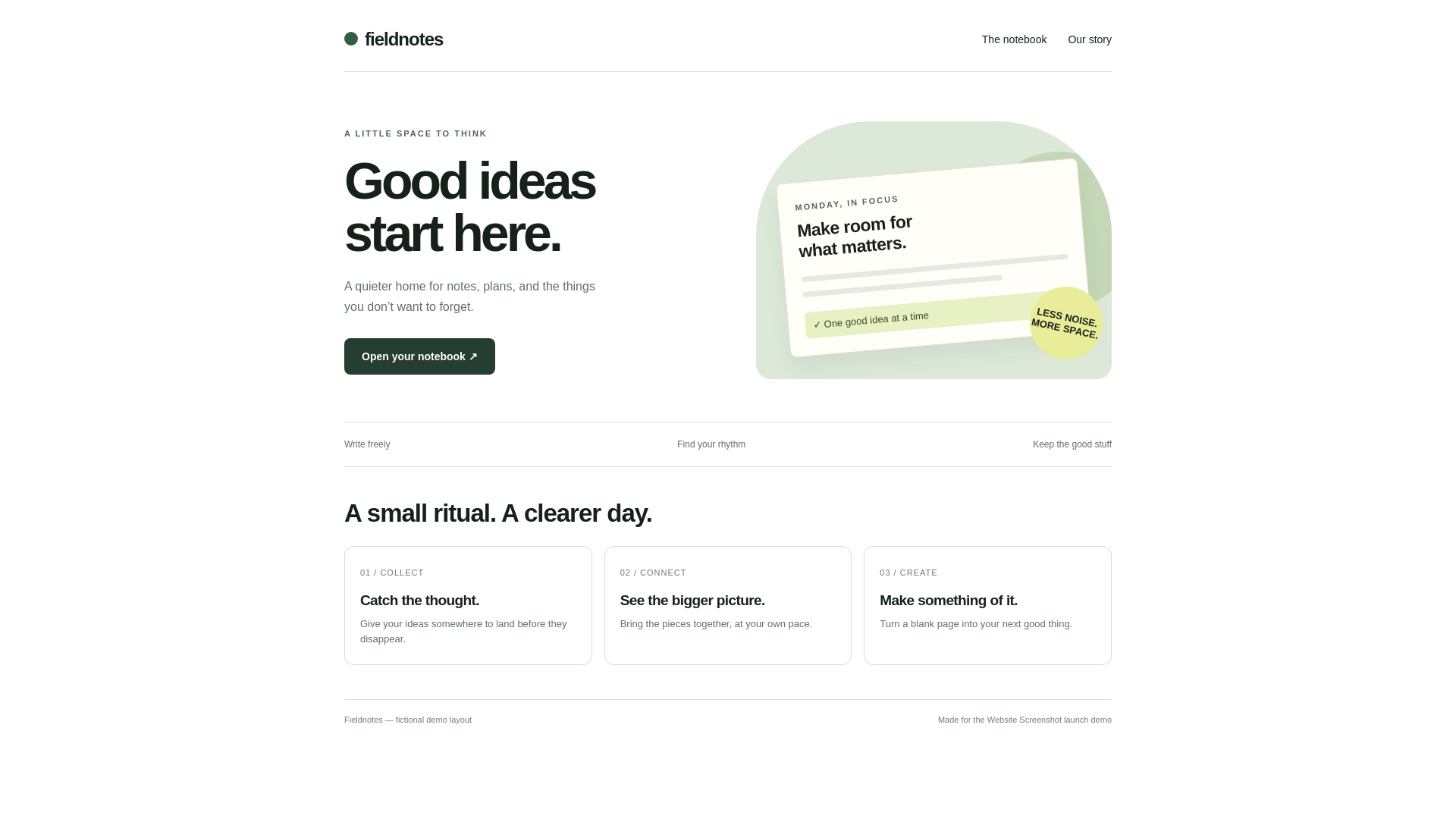
Render Fieldnotes, an original fictional landing page, from one complete HTML document. The example uses embedded CSS and system fonts, with no external images or font downloads.

Input: complete HTML document

/examples/fieldnotes.htmlDownload the example HTML

Settings to reproduce

  • Input: Manual input → HTML
  • CSS field: empty (styles are embedded in the HTML)
  • Format: PNG
  • Device: Desktop (1920 × 1080)
  • Display zoom: 100%; output size: original

Try it yourself

  1. Download the HTML and open it in a text editor, then copy the entire document into the HTML field above.
  2. Leave the separate CSS field empty. Check the green artwork and rounded shapes in the preview.
  3. Choose PNG and the desktop preset, convert, then download the original image.
Try these settings in the tool
Actual PNG export of the Fieldnotes HTML example, with green artwork and three content cards
Actual service export, 24 October 2026: 1920 × 1080 PNG. Fieldnotes is demonstration content, not a customer endorsement.
Download the actual PNG

Limitations to know before converting

Complete documents and extra CSS

Embedded style blocks are retained. CSS entered in the separate field is appended after the document styles, so normal CSS specificity and source order apply. A matching rule can override an earlier one.

Images, fonts, and local files

Relative file paths and files on your computer are not automatically uploaded with pasted HTML. Use publicly accessible absolute URLs or inline assets. Blocked resources and fonts that load late can change the result.

Preview versus export

The preview is scaled to fit the editor. Compare the downloaded original at the intended dimensions. JavaScript, network requests, and rendering timing can make complex pages differ from the local preview.

Browser and email compatibility

This produces a browser rendering, not a test across physical phones or email clients. A screenshot is a static image; links, forms, animations, and video do not stay interactive.

Common Use Cases

HTML Export Use Cases

Convert HTML to JPG for Lightweight Screenshot Exports

Use JPG when the goal is to turn code into a lighter image for sharing, internal review, or quick presentation workflows.

  • • Good for lightweight code-generated exports
  • • Useful for simple previews and documentation
  • • Smaller output than PNG in many cases

Use HTML to PNG for Crisp Layout and UI Rendering

PNG is better for HTML blocks that contain sharp text, interface controls, clean lines, or design review material where visual precision matters.

  • • Better for interface detail
  • • Useful for design review and product QA
  • • Lossless output

Export HTML to WebP

WebP is useful when you want a more modern web delivery format for rendered HTML previews and generated visual assets.

  • • Modern compressed image format
  • • Useful for lightweight preview assets
  • • Good balance of size and quality

Render HTML as PDF

When HTML output needs to become a report, printable page, invoice, or archived document, PDF is the right format to use.

  • • Best for printable HTML output
  • • Useful for invoices and reports
  • • Matches document workflows better than image export

Upload HTML Files Instead of Pasting Code Manually

This page also supports file-based workflows. Users can upload HTML or CSS files instead of manually pasting code into the editor, which is useful when they already have saved assets locally.

  • • Supports file-based workflows
  • • Good for local templates and exports
  • • Reduces manual copy-and-paste steps

FAQ

HTML Screenshot FAQ

Is Website Screenshot free, and do I need an account?+

Yes. The online screenshot and HTML conversion tools are free to use, with no registration or installation required.

Can I convert a complete HTML document to PNG?+

Yes. Paste the complete document into HTML, including its style blocks. Leave the CSS field empty when no extra styles are needed, select PNG, and convert. The worked example provides the source and the actual PNG.

What happens if I also add CSS in the separate field?+

The document’s embedded styles are preserved and the extra CSS is appended after them. Normal CSS specificity and source order determine which rule wins.

Can I upload a saved HTML file?+

Yes. Use File upload for the HTML file. Referenced local images, fonts, and stylesheets are not automatically bundled; embed them or use publicly accessible absolute URLs.

Why can fonts or images look different in the export?+

The remote renderer must load each resource. Local paths, access restrictions, failed requests, or late-loading fonts can change the output. The editor preview is scaled; compare the downloaded original.

Does this test how an email looks in Gmail or Outlook?+

No. It is a browser rendering, not an email-client compatibility test. Email clients and physical devices may render the same HTML differently.

Which formats can I choose?+

The tool offers PNG, JPG, WebP, and PDF. PNG is lossless and useful for text and interface detail. A PNG is static and does not preserve interactive links or forms.
Related Tools

Related Pages